At this time I will give tips how to run multi login in yahoo messenger.Ok i will share that tips, Actually This tips is Old tips. But there may be someone who still do not know.
Ok, let's start ....
First open feature Registry Editor, run proggram "Run" and then type in the "regedit".
Then search HKEY_CURRENT_USER, click once on the folder there will so many folder. Select the software, then click the folder labeled "yahoo". After that click folder “Pager”, after that click t folder “Test”.
Direct mouse to the blank area in the folder “Test”, then right-click, after that there will show New and show so many option. Just click “new” and then choose “DWORD Value”. Name the new registry “Plural”. Then double click on the registry then the plural would appear box labeled EDIT DWORD VALUE, Fill it 1 in column Value Data.
outline of the instructions is :
HKEY_CURRENT_USER -> Software -> Yahoo -> Pager -> Test
If you have a yahoo messenger, try to click yahoo messenger icon on your pc. So the new yahoo messenger will appear and you can sign in 2 account yahoo messenger.
Showing posts with label Tips and Trik. Show all posts
Showing posts with label Tips and Trik. Show all posts
Friday, June 5, 2009

Some Tips To Make Your Mozilla Firefox Faster
Firefox has been outperforming IE in every department for years, and version 3 is speedier than ever.
But tweak the right settings and you could make it faster still, more than doubling your speed in some situations, all for about five minutes work and for the cost of precisely nothing at all. Here's what you need to do.1. Enable pipelining
Browsers are normally very polite, sending a request to a server then waiting for a response before continuing. Pipelining is a more aggressive technique that lets them send multiple requests before any responses are received, often reducing page download times. To enable it, type about:config in the address bar, double-click network.http.pipelining and network.http.proxy.pipelining so their values are set to true, then double-click network.http.pipelining.maxrequests and set this to 8.
1. Keep in mind that some servers don't support pipelining, though, and if you regularly visit a lot of these then the tweak can actually reduce performance. Set network.http.pipelining and network.http.proxy.pipelining to false again if you have any problems.
2. Render quickly
Large, complex web pages can take a while to download. Firefox doesn't want to keep you waiting, so by default will display what it's received so far every 0.12 seconds (the "content notify interval"). While this helps the browser feel snappy, frequent redraws increase the total page load time, so a longer content notify interval will improve performance.
Type about:config and press [Enter], then right-click (Apple users ctrl-click) somewhere in the window and select New > Integer. Type content.notify.interval as your preference name, click OK, enter 500000 (that's five hundred thousand, not fifty thousand) and click OK again.
Right-click again in the window and select New > Boolean. This time create a value called content.notify.ontimer and set it to True to finish the job.
3. Faster loading
If you haven't moved your mouse or touched the keyboard for 0.75 seconds (the content switch threshold) then Firefox enters a low frequency interrupt mode, which means its interface becomes less responsive but your page loads more quickly. Reducing the content switch threshold can improve performance, then, and it only takes a moment.
Type about:config and press [Enter], right-click in the window and select New > Integer. Type content.switch.threshold, click OK, enter 250000 (a quarter of a second) and click OK to finish.
4. No interruptions
You can take the last step even further by telling Firefox to ignore user interface events altogether until the current page has been downloaded. This is a little drastic as Firefox could remain unresponsive for quite some time, but try this and see how it works for you.
Type about:config, press [Enter], right-click in the window and select New > Boolean. Type content.interrupt.parsing, click OK, set the value to False and click OK.
5. Block Flash
Intrusive Flash animations are everywhere, popping up over the content you actually want to read and slowing down your browsing. Fortunately there's a very easy solution. Install the Flashblock extension (flashblock.mozdev.org) and it'll block all Flash applets from loading, so web pages will display much more quickly. And if you discover some Flash content that isn't entirely useless, just click its placeholder to download and view the applet as normal.
6. Increase the cache size
As you browse the web so Firefox stores site images and scripts in a local memory cache, where they can be speedily retrieved if you revisit the same page. If you have plenty of RAM (2 GB of more), leave Firefox running all the time and regularly return to pages then you can improve performance by increasing this cache size. Type about:config and press [Enter], then right-click anywhere in the window and select New > Integer. Type browser.cache.memory.capacity, click OK, enter 65536 and click OK, then restart your browser to get the new, larger cache.
7. Enable TraceMonkey
TraceMonkey is a new Firefox feature that converts slow Javascript into super-speedy x86 code, and so lets it run some functions anything up to 20 times faster than the current version. It's still buggy so isn't available in the regular Firefox download yet, but if you're willing to risk the odd crash or two then there's an easy way to try it out.
Install the latest nightly build (ftp://ftp.mozilla.org/pub/firefox/nightly/latest-trunk/), launch it, type about:config in the address bar and press Enter. Type JIT in the filter box, then double-click javascript.options.jit.chrome and javascript.options.jit.content to change their values to true, and that's it - you're running the fastest Firefox Javascript engine ever.
8. Compress data
If you've a slow internet connection then it may feel like you'll never get Firefox to perform properly, but that's not necessarily true. Install toonel.net (toonel.net) and this clever Java applet will re-route your web traffic through its own server, compressing it at the same time, so there's much less to download. And it can even compress JPEGs by allowing you to reduce their quality. This all helps to cut your data transfer, useful if you're on a limited 1 GB-per-month account, and can at best double your browsing performance.
But tweak the right settings and you could make it faster still, more than doubling your speed in some situations, all for about five minutes work and for the cost of precisely nothing at all. Here's what you need to do.1. Enable pipelining
Browsers are normally very polite, sending a request to a server then waiting for a response before continuing. Pipelining is a more aggressive technique that lets them send multiple requests before any responses are received, often reducing page download times. To enable it, type about:config in the address bar, double-click network.http.pipelining and network.http.proxy.pipelining so their values are set to true, then double-click network.http.pipelining.maxrequests and set this to 8.
1. Keep in mind that some servers don't support pipelining, though, and if you regularly visit a lot of these then the tweak can actually reduce performance. Set network.http.pipelining and network.http.proxy.pipelining to false again if you have any problems.
2. Render quickly
Large, complex web pages can take a while to download. Firefox doesn't want to keep you waiting, so by default will display what it's received so far every 0.12 seconds (the "content notify interval"). While this helps the browser feel snappy, frequent redraws increase the total page load time, so a longer content notify interval will improve performance.
Type about:config and press [Enter], then right-click (Apple users ctrl-click) somewhere in the window and select New > Integer. Type content.notify.interval as your preference name, click OK, enter 500000 (that's five hundred thousand, not fifty thousand) and click OK again.
Right-click again in the window and select New > Boolean. This time create a value called content.notify.ontimer and set it to True to finish the job.
3. Faster loading
If you haven't moved your mouse or touched the keyboard for 0.75 seconds (the content switch threshold) then Firefox enters a low frequency interrupt mode, which means its interface becomes less responsive but your page loads more quickly. Reducing the content switch threshold can improve performance, then, and it only takes a moment.
Type about:config and press [Enter], right-click in the window and select New > Integer. Type content.switch.threshold, click OK, enter 250000 (a quarter of a second) and click OK to finish.
4. No interruptions
You can take the last step even further by telling Firefox to ignore user interface events altogether until the current page has been downloaded. This is a little drastic as Firefox could remain unresponsive for quite some time, but try this and see how it works for you.
Type about:config, press [Enter], right-click in the window and select New > Boolean. Type content.interrupt.parsing, click OK, set the value to False and click OK.
5. Block Flash
Intrusive Flash animations are everywhere, popping up over the content you actually want to read and slowing down your browsing. Fortunately there's a very easy solution. Install the Flashblock extension (flashblock.mozdev.org) and it'll block all Flash applets from loading, so web pages will display much more quickly. And if you discover some Flash content that isn't entirely useless, just click its placeholder to download and view the applet as normal.
6. Increase the cache size
As you browse the web so Firefox stores site images and scripts in a local memory cache, where they can be speedily retrieved if you revisit the same page. If you have plenty of RAM (2 GB of more), leave Firefox running all the time and regularly return to pages then you can improve performance by increasing this cache size. Type about:config and press [Enter], then right-click anywhere in the window and select New > Integer. Type browser.cache.memory.capacity, click OK, enter 65536 and click OK, then restart your browser to get the new, larger cache.
7. Enable TraceMonkey
TraceMonkey is a new Firefox feature that converts slow Javascript into super-speedy x86 code, and so lets it run some functions anything up to 20 times faster than the current version. It's still buggy so isn't available in the regular Firefox download yet, but if you're willing to risk the odd crash or two then there's an easy way to try it out.
Install the latest nightly build (ftp://ftp.mozilla.org/pub/firefox/nightly/latest-trunk/), launch it, type about:config in the address bar and press Enter. Type JIT in the filter box, then double-click javascript.options.jit.chrome and javascript.options.jit.content to change their values to true, and that's it - you're running the fastest Firefox Javascript engine ever.
8. Compress data
If you've a slow internet connection then it may feel like you'll never get Firefox to perform properly, but that's not necessarily true. Install toonel.net (toonel.net) and this clever Java applet will re-route your web traffic through its own server, compressing it at the same time, so there's much less to download. And it can even compress JPEGs by allowing you to reduce their quality. This all helps to cut your data transfer, useful if you're on a limited 1 GB-per-month account, and can at best double your browsing performance.
Sunday, May 31, 2009
How To Enable Regedit In Windows XP Home and Disable Auto Run For Your PC
a week ago, my friends complain because the virus infected computer, the computer at my friend's already installed anti-virus, but rarely update because it does not have any internet connection.
I remember one tips to reduce the spread of the virus through the flashdrive by disabling auto-run on the PC. To edit regedit pleases open feature run at windows and then type at run column “regedit”(without quote). After I type “regedit” in run column, suddenly I saw the box with warning
"Registry editing has been disabled by your administrator"
when I saw the box, I think the virus also disabling the feature regedit feature pc in my friend' computer .
ok, right now I will give tips to you. Who know's you have some problem like my friend.
Eventually I try to find ways how to enable regedit by searching in the search engine google.
finally I find one antivirus that have feature registry's editor, antivirus that I means is ANSAV
You can download ANSAV here http://www.ansav.com/download/
after you download ANSAV, to activate regedit at pc that regedit disable by virus you can activate ANSAV. If you if you have downloaded ansav, and then find Plugins .at plug in exists 4 options, choose the RegistryFx. And then click it. And Then appear box that have some many options. Find option 'Registry Editor' and check the box , after then click Restart Explore. After you do that you can try to Run menu, and type regedit. now you don't have any problem, you can access the Registry Editor.
Next Point is turn off the Autorun function or disable Autorun :
Here are the steps to turn on the Windows Autorun function through registry
(1) Click on the Start menu, select Run
(2) Type "regedit" (without quotation marks), then press the [Enter]. There will open windows Registry Editor.
(3) Go into the
"HKEY_CURRENT_USER \ Software \ Microsoft \ Windows \ CurrentVersion \ Policies \ explorer"
(4) In the right panel, create a DWORD new value by right-click at empty area, select New and select DWORD value (if apparently DWORD “ NoDriveTypeAutoRun ” have available, double-click the DWORD, and follow step 6)
(5) Give Name the DWORD value with the "NoDriveTypeAutoRun"
(6) Then double-click the DWORD value you just created, and on Value data fills in with character “ b5", previously marks off cheque on Hexadecimal. Click OK and then close Registry's Editor
(7) Now try connect Flash Disk to the USB port, there is no longer a boring box of Windows.
"Registry editing has been disabled by your administrator"
When the effect is not happening yet, try restart your computer first
I remember one tips to reduce the spread of the virus through the flashdrive by disabling auto-run on the PC. To edit regedit pleases open feature run at windows and then type at run column “regedit”(without quote). After I type “regedit” in run column, suddenly I saw the box with warning
"Registry editing has been disabled by your administrator"
when I saw the box, I think the virus also disabling the feature regedit feature pc in my friend' computer .
ok, right now I will give tips to you. Who know's you have some problem like my friend.
Eventually I try to find ways how to enable regedit by searching in the search engine google.
finally I find one antivirus that have feature registry's editor, antivirus that I means is ANSAV
You can download ANSAV here http://www.ansav.com/download/
after you download ANSAV, to activate regedit at pc that regedit disable by virus you can activate ANSAV. If you if you have downloaded ansav, and then find Plugins .at plug in exists 4 options, choose the RegistryFx. And then click it. And Then appear box that have some many options. Find option 'Registry Editor' and check the box , after then click Restart Explore. After you do that you can try to Run menu, and type regedit. now you don't have any problem, you can access the Registry Editor.
Next Point is turn off the Autorun function or disable Autorun :
Here are the steps to turn on the Windows Autorun function through registry
(1) Click on the Start menu, select Run
(2) Type "regedit" (without quotation marks), then press the [Enter]. There will open windows Registry Editor.
(3) Go into the
"HKEY_CURRENT_USER \ Software \ Microsoft \ Windows \ CurrentVersion \ Policies \ explorer"
(4) In the right panel, create a DWORD new value by right-click at empty area, select New and select DWORD value (if apparently DWORD “ NoDriveTypeAutoRun ” have available, double-click the DWORD, and follow step 6)
(5) Give Name the DWORD value with the "NoDriveTypeAutoRun"
(6) Then double-click the DWORD value you just created, and on Value data fills in with character “ b5", previously marks off cheque on Hexadecimal. Click OK and then close Registry's Editor
(7) Now try connect Flash Disk to the USB port, there is no longer a boring box of Windows.
"Registry editing has been disabled by your administrator"
When the effect is not happening yet, try restart your computer first
Saturday, May 30, 2009
How To Download Video From Youtube?
Many my friends ask me how to downlod videos from youtube, they wanted to download a video clip famous band2 .
I will give trick how to download videos from youtube, in fact many ways to download videos from youtube. I will share how to download from youtube with software, we use Orbit Download Manager. In Orbit Download Manager have feature Grab + + that allows us to download videos from youtube ...
Here is step by step how to download video from youtube with Orbit Download Manager :
1.Before that install Orbit Download Manager, you can download Orbit Download Manager here http://www.orbitdownloader.com/download.htm Orbit
2.after you install Orbit Download Manager, run that software. Then activate the Grab + + feature. how to activate the feature Grab + + is show Orbit download manager and then navigate your mouse to the Tools menu, now there are several options. Select the Grab + + (Tools ---> Grab + +)
3.After you click Grab + +, u will see there will be hint box, press ok. After that au will see new show titled grab the + + at the top left.
4.to try it, let's open http://www.youtube.com
5.Choose one of the videos from youtube, make sure the grab + + feature is active. For now let me try to download video clips from Shayne ward - no promises.
6.Show features grab + +, look the table in the grab + + there a files name videoplayback.flv appear with a capacity of 7.97MB files. Do not forget to check the box on the left videoplayback.flv, and press the Download button .
7.now look in the Orbit and there is a box labeled Create a new Download.
I will describe it, first column is where URL field where do we put links to download the file.
“Save to”: where is the place we put the results from our downloads.
"Save as": a column that aims to give the name of the file that you have done download it.
8.The next step is click the browse button on the right to save. Select where you will put file that have done you download it. For this time I put on the desktop.
9.Views back to the table titled Create New Download. For the name of that files I give name Shayne ward - no promises.flv. How to change is you only change name that file, name of that file before Shayne ward - no promises.flv is videoplayback.flv. you just only change videoplayback.flv to Shayne Ward - no promises.flv.
10.After that click download button.
11.wait until the file has finished downloading.
12.After the file has finished downloading, run that file with software player such as windows media player, VLC or other software that you can play file. Flv.
You can download the Orbit here
http://www.orbitdownloader.com/download.htm
I will give trick how to download videos from youtube, in fact many ways to download videos from youtube. I will share how to download from youtube with software, we use Orbit Download Manager. In Orbit Download Manager have feature Grab + + that allows us to download videos from youtube ...
Here is step by step how to download video from youtube with Orbit Download Manager :
1.Before that install Orbit Download Manager, you can download Orbit Download Manager here http://www.orbitdownloader.com/download.htm Orbit
2.after you install Orbit Download Manager, run that software. Then activate the Grab + + feature. how to activate the feature Grab + + is show Orbit download manager and then navigate your mouse to the Tools menu, now there are several options. Select the Grab + + (Tools ---> Grab + +)
3.After you click Grab + +, u will see there will be hint box, press ok. After that au will see new show titled grab the + + at the top left.
4.to try it, let's open http://www.youtube.com
5.Choose one of the videos from youtube, make sure the grab + + feature is active. For now let me try to download video clips from Shayne ward - no promises.
6.Show features grab + +, look the table in the grab + + there a files name videoplayback.flv appear with a capacity of 7.97MB files. Do not forget to check the box on the left videoplayback.flv, and press the Download button .
7.now look in the Orbit and there is a box labeled Create a new Download.
I will describe it, first column is where URL field where do we put links to download the file.
“Save to”: where is the place we put the results from our downloads.
"Save as": a column that aims to give the name of the file that you have done download it.
8.The next step is click the browse button on the right to save. Select where you will put file that have done you download it. For this time I put on the desktop.
9.Views back to the table titled Create New Download. For the name of that files I give name Shayne ward - no promises.flv. How to change is you only change name that file, name of that file before Shayne ward - no promises.flv is videoplayback.flv. you just only change videoplayback.flv to Shayne Ward - no promises.flv.
10.After that click download button.
11.wait until the file has finished downloading.
12.After the file has finished downloading, run that file with software player such as windows media player, VLC or other software that you can play file. Flv.
You can download the Orbit here
http://www.orbitdownloader.com/download.htm
Safe Browsing Guidelines From Phishing Attacks
phishing attacks made by not responsible people who was give a lesson to us to be more careful to access website like social networking, email, bank acccount and another important website.
I do this because it happened phishing attacks to facebook. I have a friend where he was exposed to phishing attacks facebook, at the time he tried to login to facebook he can not log in and then he tried to use feature forgot the password and eventually enter the email he owned him. When he tried to log in to his email, he can't login too. I think he certainly use the same password for email and facebook account .
I will share some tips to prevent phishing attacks:
- do not directly hit-clicking the link in the email.Why do I say that because like in the year 2008 occurred many phishing through email by sending an email with a naked celebrity Photos and you will be directed to click on a link, if you click that link then you are indirectly send cookies to the web which that link contains javascript code . where that site is a place attacker steal your authentication details.
- use the browser with the latest update as on mozilla firefox 3.0 is equipped with features that when we access a browser that is suspicious then the warning will appear, or use other browsers have similar features such as mozilla firefox which I mentioned earlier.
- Note the address bar when you access the important website , whether there is something suspicious?
- Install anti-virus on your PC and try to always update
- Create a different password to access email with a password to access social networking websites, bank accounts, etc. Because at this time many people are still using the same password for use on all accounts.
During this I always use the tips I write on the line.
yesterday I browse and find article from Kaspersky Lab on preventing us from phishing attacks. Please click here if you want read ….
http://www.kaspersky.com/news?id=207575818
Friday, May 29, 2009
Software Optimizer For Mozilla Firefox
This time I will share freeware for optimize mozilla firefox, I use mozilla firefox to surf in the virtual world. If you want to download mozilla firefox you can download in here :
freeware that I mean is Firefox Ultimate Optimizer version 1.1. the most recent version is version 1.1. although this can be spelled freeware old version 1.1 was issued since the year 2007, what can still use the mozilla firefox 3.10.
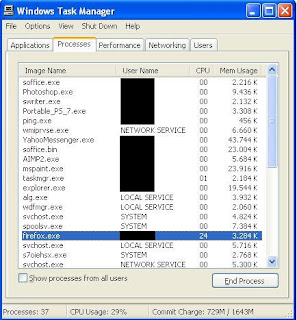
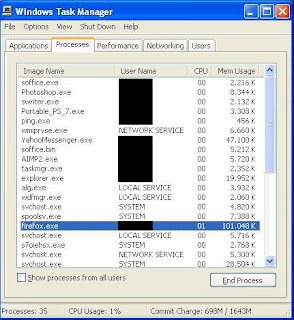
function of this freeware is to reduce memory usage on the mozilla browser, I use mozilla happy because I can open a tab and there are many add-ons you support mozilla browser performance. The more tabs you open, and the more I bnyk add ons do I install the mozilla browser so that I will eat a lot of memory and of course it will make my pc more slowly. Therefore, I use Firefox Ultimate Optimizer freeware is to reduce the use of memory.
look at picture on the image below, before i use Firefox Optimizer v1.1.
.jpg)
And This After i use Firefox Optimizer v1.1.
.jpg)
you can look Firefox Optimizer v1.1 reduce firefox memory usage.
If you want download Firefox Ultimate Optimizer version 1.1, you can download in here
http://firefox-ultimate-optimizer.en.softonic.com/
http://www.mozilla.com/en-US/products/download.html?product=firefox-3.0.10&os=win&lang=en-US
freeware that I mean is Firefox Ultimate Optimizer version 1.1. the most recent version is version 1.1. although this can be spelled freeware old version 1.1 was issued since the year 2007, what can still use the mozilla firefox 3.10.
function of this freeware is to reduce memory usage on the mozilla browser, I use mozilla happy because I can open a tab and there are many add-ons you support mozilla browser performance. The more tabs you open, and the more I bnyk add ons do I install the mozilla browser so that I will eat a lot of memory and of course it will make my pc more slowly. Therefore, I use Firefox Ultimate Optimizer freeware is to reduce the use of memory.
look at picture on the image below, before i use Firefox Optimizer v1.1.
.jpg)
And This After i use Firefox Optimizer v1.1.
.jpg)
you can look Firefox Optimizer v1.1 reduce firefox memory usage.
If you want download Firefox Ultimate Optimizer version 1.1, you can download in here
http://firefox-ultimate-optimizer.en.softonic.com/
Subscribe to:
Posts (Atom)
